Silhouette vs Cricut
by Marcus Bell · April 03, 2022
If you're weighing the silhouette cameo vs cricut maker, here's the direct answer: the Cricut Maker handles a broader range of materials with more precision out of the box, while the Silhouette Cameo gives you more software freedom and lower long-term running costs. Both are capable machines — the right choice comes down to how you work. Browse our vinyl and Cricut projects category for a fuller picture of what each machine can do before you commit.
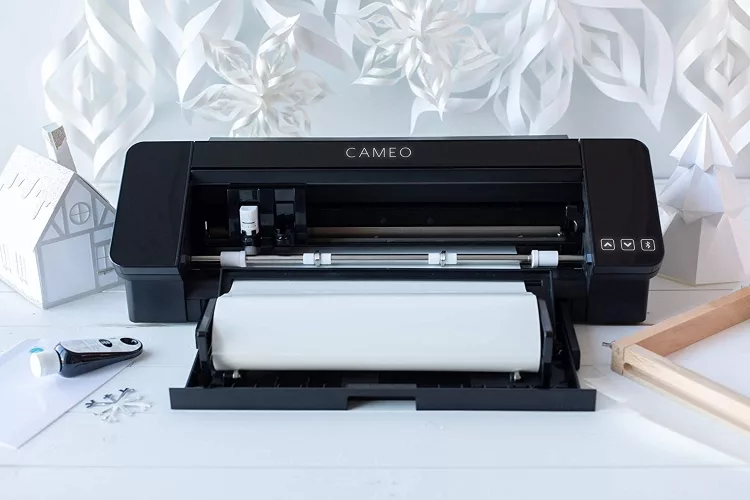
These two brands have dominated the home cutting machine market for years and both have earned loyal followings among crafters, small business owners, and DIY hobbyists. Whether you're cutting heat transfer vinyl for shirts, making custom decals, or working with cardstock and fabric, both machines can handle the job — they just take different paths to get there.
The real question isn't which machine is objectively "better." It's which one fits your projects, your budget, and the way you actually want to work. This guide breaks down the core differences, the gear you'll need, mistakes to avoid, and quick wins you can use right away.
Contents
Silhouette Cameo vs Cricut Maker: How They Stack Up
Specs at a Glance
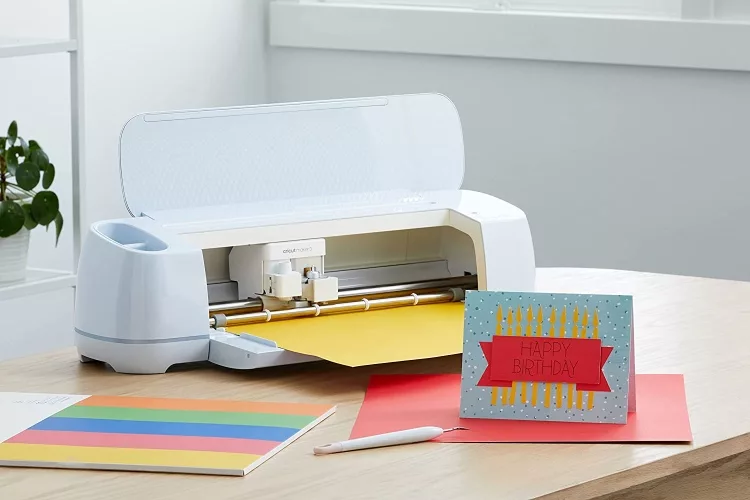
At the hardware level these two machines look similar on the shelf, but they behave differently in practice. The Cricut Maker uses a proprietary adaptive clamp system that accepts over a dozen tool types — rotary blades, scoring wheels, foil transfer tools — giving it a wide material range without any modifications. The Silhouette Cameo uses an open blade slot system, which means you can use third-party blades and tools without paying a premium for official accessories.
| Feature | Silhouette Cameo 4 | Cricut Maker 3 |
|---|---|---|
| Cutting Force | Up to 210g | Up to 4,000g (Knife Blade) |
| Max Cutting Width | 12 in (24 in with dual carriage) | 12 inches |
| Software | Silhouette Studio (desktop-first) | Cricut Design Space (cloud-based) |
| Compatible Tools | Standard, deep cut, kraft blade + third-party | Fine point, deep cut, rotary, knife + more |
| Wireless | Bluetooth | Bluetooth + USB |
| Free Design Library | Limited free; store-based | Larger library with Cricut Access |
| Works Offline | Yes — full desktop use | Limited — requires internet for most functions |
| Upfront Price | Generally lower | Generally higher |
The numbers tell part of the story. The Cricut Maker's knife blade cuts materials up to 2.4mm thick — balsa wood, thick leather, chipboard included. The Silhouette Cameo 4's 210g force covers most everyday crafting materials but can't match that on the heaviest cuts. For standard vinyl and paper projects, though, both machines perform at a comparable level.
Software Differences
This is where the two machines diverge most sharply. Silhouette Studio is a desktop application — it runs offline, supports SVG import natively on the free tier, and gives you granular control over nodes, paths, and kerning. If you already work in Illustrator or Inkscape, you'll feel at home immediately.
Cricut Design Space is cloud-based. Your projects live online, and you need an active internet connection for most functions. The tradeoff is a cleaner, more guided interface with a large built-in design library. If you're newer to cutting machines or prefer a more structured experience, Design Space is faster to learn.
Pro tip: If you already use Adobe Illustrator or Inkscape, Silhouette Studio's free tier handles SVG imports without upgrading — a meaningful cost saving from day one.
Supplies and Accessories You'll Actually Need
Blades and Cutting Mats
Both machines use replaceable blades and sticky cutting mats. The difference is in the accessory ecosystem. Cricut's adaptive clamp holds tools like the scoring wheel and rotary blade — each sold separately at a premium. The Silhouette system accepts generic blades from third-party vendors, which lowers your consumable costs considerably over time.
- Standard fine-point blade — everyday vinyl, cardstock, and paper
- Deep-cut blade — foam, thick cardstock, and craft rubber
- Rotary blade (Cricut only) — clean fabric cuts without a stabilizer backing
- Knife blade / Kraft blade — balsa wood, thick leather, chipboard
Cutting mats come in different tack levels: light grip for delicate paper, standard for most materials, strong grip for fabric and heavier stock. Replace your mat when grip weakens noticeably. A mat that no longer holds material firmly is one of the fastest ways to ruin a cut and waste material.
Vinyl and Material Types
Both machines cut the same core vinyl types. Adhesive vinyl, heat transfer vinyl (HTV), printable vinyl, and removable vinyl all work on either machine. Understanding the differences between vinyl types matters before you buy materials in bulk — the guide on what removable vinyl is used for is a solid starting point if you're newer to vinyl projects.
Where the Cricut Maker pulls ahead is in fabric handling. Its rotary blade cuts fabric cleanly without an iron-on stabilizer, which is a real advantage if your projects involve apparel or quilting. The Silhouette handles fabric as well, but typically requires the fabric to be adhered to a mat or backed with stabilizer first.
For HTV work specifically, both machines produce clean cuts. The one step most beginners miss: mirror your design before cutting HTV. Once it's cut un-mirrored, that sheet is wasted. After cutting, the process of removing excess vinyl — called weeding — takes some practice. The how to weed vinyl guide covers the technique in detail if you're just getting started.
Watch out: Never skip mirroring your heat transfer vinyl design before sending it to cut — it's the single most common beginner mistake and there's no fixing it after the fact.
Mistakes That Cost You Time and Material
Setup Errors
Most failed cuts trace back to setup, not the machine itself. The good news: these errors are easy to avoid once you know what to look for.
- Using the wrong blade for the material — always match blade type to what you're cutting
- Skipping the test cut — a 5-second test cut at the corner of your material saves entire sheets
- Dirty or worn cutting mat — a mat that's lost its grip will shift material mid-cut
- Wrong material setting in the software — using a generic "vinyl" setting for glitter vinyl or specialty materials often results in incomplete cuts
- Blade depth set too deep — over-cutting scores the mat and shortens its useful life significantly
On the software side, incorrect SVG file preparation causes most cutting errors for newer users. Compound paths, overlapping nodes, and rasterized elements all create problems. Clean up your files before sending them to the machine — what looks fine on screen may not translate into clean cuts.
Weeding Problems
Weeding — removing excess vinyl after cutting — is where patience matters. Common issues include designs tearing, pieces lifting unexpectedly, or the carrier sheet separating. The usual causes:
- Cut pressure too low, leaving vinyl partially attached to the backing
- Cut pressure too high, cutting through the backing and weakening the carrier sheet
- Intricate designs without adequate anchor points — leave a small border around highly detailed cuts
- Cold vinyl — warm it slightly with a heat gun or in a warm room before weeding to improve peel behavior
What People Get Wrong About Cutting Machines

Brand Myths
A few persistent myths circulate in crafting communities that can push you toward the wrong purchase:
- "Cricut is for beginners, Silhouette is for professionals." Neither machine is inherently beginner or pro. Cricut's software is more approachable, but the hardware is just as capable at a professional level. Silhouette's steeper software curve doesn't make it more "serious."
- "You have to use brand-name materials." Both machines work with virtually any vinyl from any brand. You're not locked into proprietary consumables for standard cutting work.
- "Silhouette never requires a subscription." The free tier of Silhouette Studio is robust, but paid tiers unlock print-then-cut, rhinestone tools, and the full design library. Cricut Access is similarly optional but adds recurring cost if you rely on pre-made designs.
According to Wikipedia's overview of die cutting technology, the mechanics behind home cutting machines evolved directly from industrial die cutting — meaning the core principles of blade pressure, material feed, and cut registration have decades of engineering refinement behind them. Both brands have applied those fundamentals well.
Material Myths
Another common misconception is that the silhouette cameo vs cricut maker debate is settled by cutting force alone. For everyday materials — adhesive vinyl, HTV, cardstock — both machines perform identically. The Cricut Maker's force advantage only matters when you're regularly cutting thick leather, balsa wood, or chipboard. If your projects don't include those materials, you won't notice the difference in practice.
People also assume the Silhouette can't handle fabric. It can — the workflow just differs slightly from the Cricut's rotary blade approach. Neither machine is limited to a narrow material range for typical crafting.
Keeping Your Machine Running Like New
Cleaning Routine
Both machines need minimal but consistent upkeep. A little routine maintenance extends blade life, preserves cut quality, and prevents the kind of small problems that cause failed projects.
- After every session, use a lint roller or soft brush to remove material debris from the cutting area and roller mechanism
- Wipe the mat periodically with a mild adhesive cleaner to remove built-up lint and residue
- Keep the interior cutting path clear — small vinyl or paper fragments can jam the rollers over time
- Store mats covered or face-down between uses to preserve adhesive
Never use alcohol-based cleaners directly on blade housings — they degrade plastic components over time. A dry microfiber cloth handles most debris without any risk to the machine.
Blade Life and Replacement
Blade lifespan depends on what you're cutting and how often. Abrasive materials like glitter vinyl dull blades faster than smooth materials. Signs your blade needs replacing:
- Incomplete cuts requiring multiple passes at the same pressure setting
- Tearing instead of clean slicing on thin or delicate materials
- Increased drag or pulling during the cut stroke
For the Cricut Maker, official replacement blades are the reliable choice since they're engineered to the machine's tolerances. For the Silhouette Cameo, the aftermarket blade market is well-established — many crafters use third-party blades without any loss in cut quality, at significantly lower cost.
Pro insight: Store spare blades in their original housing or a small pill organizer — loose blades are a finger hazard, and exposure to air and humidity degrades the edge faster than cutting ever will.
Simple Tips for Better Results Right Away
Always Do a Test Cut
The single highest-return habit in cutting machine work is the test cut. Before sending your full design to the machine, cut a small square or simple shape in the corner of your material. Check that it cuts cleanly through the vinyl without scoring the backing. Adjust pressure up or down one increment and retest if needed. This two-minute step eliminates the most common source of wasted material.
A few other quick wins that deliver immediate results:
- Run the built-in calibration routine when you first set up — both Cricut and Silhouette include calibration tools that most users skip entirely
- Match mat grip level to your material — light grip for delicate paper, standard for vinyl, strong grip for fabric
- Increase cut speed for large simple designs; slow it down for intricate detailed work
- Let the machine finish unloading the mat before you try to remove it manually
Design File Tips
Clean design files matter as much as the physical setup. Whether you're working in Silhouette Studio or Cricut Design Space, these habits prevent most file-related cut failures:
- Convert text to paths before importing — font rendering differences between applications can shift letterforms
- Use "weld" or "flatten" for designs with overlapping elements you want cut as a single piece
- Set your canvas to the exact dimensions of your material before placing the design
- For multi-color HTV designs, separate each color onto its own layer and cut each one individually on its own sheet
If you're researching which machine to invest in for a vinyl or apparel business, the best Cricut vinyl cutting machine reviews offer a detailed breakdown of models across different price points and use cases.
Frequently Asked Questions
Is the Cricut Maker better than the Silhouette Cameo for beginners?
The Cricut Maker's Design Space software has a gentler learning curve, making it easier for complete beginners to start cutting right away. The Silhouette Cameo is also beginner-friendly, but Silhouette Studio has more settings to navigate initially. If ease of startup is your primary concern, Cricut has a slight edge.
Can I use third-party vinyl with both machines?
Yes. Both the Silhouette Cameo and Cricut Maker work with virtually any brand of adhesive vinyl, heat transfer vinyl, or printable vinyl. You're not restricted to manufacturer-branded materials for standard cutting projects.
Which machine costs less to run long-term?
The Silhouette Cameo typically costs less over time because it accepts third-party blades and doesn't require a subscription for core design functionality. The Cricut Maker's proprietary tool system means replacement accessories carry a higher price, and a Cricut Access subscription adds a recurring cost if you regularly use licensed designs.
Do I need an internet connection to use either machine?
The Silhouette Cameo runs fully offline through Silhouette Studio on your desktop. The Cricut Maker relies on Cricut Design Space, which requires an internet connection for most functions. The Silhouette has a clear advantage if you work in spaces with unreliable connectivity.
The best cutting machine is the one that matches how you actually work — not the one with the most impressive spec sheet.
 |  |  |  |
About Marcus Bell
Marcus Bell spent six years as a production manager at a small-batch screen printing shop in Austin, Texas, overseeing everything from film output and emulsion coating to press registration, squeegee selection, and garment finishing. He expanded into vinyl cutting and Cricut projects when the shop added a custom apparel decoration line, giving him direct experience with heat transfer vinyl application, weeding techniques, and the real-world differences between Cricut, Silhouette, and Brother cutting machines. At PrintablePress, he covers screen printing, vinyl cutting and Cricut projects, and T-shirt printing and decoration techniques.


Get some FREE Gifts. Or latest free printing books here.
Disable Ad block to reveal all the secret. Once done, hit a button below
| | | |