How to Print On Canvas
by Karen Jones · April 01, 2022
A friend once handed Karen a crumpled 4×6 photo and said, "I want this giant on a canvas for the hallway." That one request opened up a world of specialty media, printer settings, and coating sprays she hadn't known existed. If you're wondering how to print on canvas, this guide gives you everything — methods, tools, costs, and a clear walkthrough — so you can stop wondering and start printing. For a broader look at printing techniques and equipment, browse the printer guides hub.
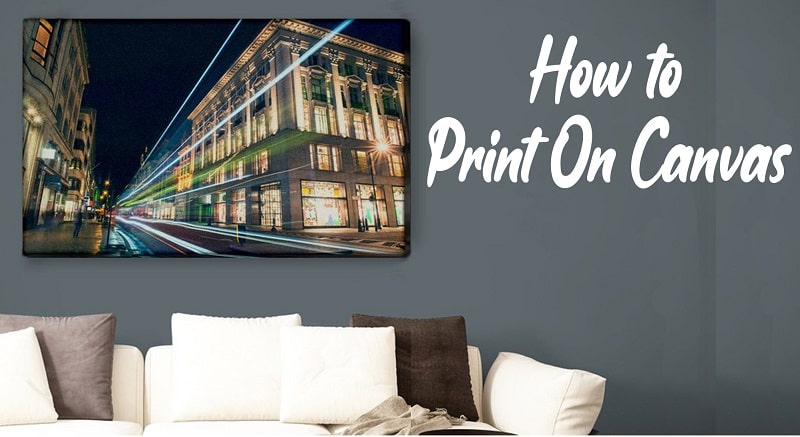
Canvas prints have surged in popularity because they bridge the gap between photography and fine art. What once required a professional print lab can now be done at home with the right printer and a bit of preparation. The texture of canvas adds a tactile, painterly quality that paper simply can't replicate.
You have more options than you might expect. This guide covers three main approaches — direct inkjet printing, heat transfer, and sublimation on canvas — so you can match the method to your equipment and budget.
Contents
What Canvas Printing Really Is
Canvas printing is the process of reproducing a digital image on canvas fabric — either by printing directly onto a prepared canvas surface or by transferring a printed image using heat. According to the Wikipedia entry on giclée printing, museum-quality canvas reproduction was once reserved for fine art studios. Today, the same output quality is accessible to anyone willing to invest in the right equipment.
Direct Printing vs. Transfer Methods
Direct inkjet printing sends ink from the printer nozzles straight onto canvas that feeds through the machine. Transfer methods involve printing on a separate medium — transfer paper or sublimation paper — then using heat and pressure to bond the image to the canvas surface. Both approaches can produce vivid, long-lasting results. The difference comes down to what equipment you already own and how much control you want over the final look.
Why Canvas Feels Different from Paper
Canvas absorbs ink differently than glossy or matte photo paper. The woven texture creates micro-variations in how each color pools, which gives canvas prints their characteristic depth. That depth works in your favor for portraits and landscapes, but it can soften very fine text or intricate line work. Photos with strong tonal contrast tend to pop on canvas, while highly detailed technical graphics may be better suited to paper.
Comparing Your Canvas Printing Options
Method-by-Method Breakdown
Before you commit to a setup, it helps to see the major methods side by side. Each has a different cost profile, learning curve, and quality ceiling.
| Method | Equipment Needed | Image Quality | Typical DIY Cost | Skill Level |
|---|---|---|---|---|
| Direct Inkjet | Inkjet printer, coated canvas roll or sheets | Excellent (gallery quality) | $0.50–$3 per sq ft | Moderate |
| Heat Transfer | Any inkjet printer, heat press or iron, transfer paper | Good (slight texture overlay) | $1–$4 per sq ft | Easy–Moderate |
| Sublimation | Sublimation printer, heat press, sublimation-coated canvas | Very good (vivid color) | $1.50–$5 per sq ft | Moderate |
| Professional Service | None (outsourced) | Excellent | $20–$80+ per print | None required |
Which Method Suits Your Situation
If you already own a wide-format inkjet — an Epson EcoTank, Canon PIXMA, or similar — direct printing is likely your most cost-effective path. If you have a heat press and want to experiment without buying new equipment, the heat transfer route makes sense. Sublimation on canvas is a newer niche; it works well for polyester-blend canvas but requires a dedicated sublimation printer and press. If you're weighing that investment, the sublimation printer cost guide breaks down what to expect at every budget level.
Pro tip: Before committing to a full-size run, do a small 8×10 test print on your chosen canvas media — canvas sheets aren't cheap, and a single calibration test can save you from wasting an entire roll on a bad color profile.
What You Need Before You Start
Printer and Ink Requirements
For direct inkjet printing on canvas, you want a printer that can handle thicker media. Most standard desktop inkjets have a straight paper path option that accommodates canvas sheets — check your manual before feeding a stiff canvas sheet through a curved path. Pigment-based inks are strongly preferred over dye-based inks for canvas work because they resist UV fading far better over time. If your printer uses dye inks, you can still print on canvas, but plan to apply a UV-protective coating afterward.
Epson printers with UltraChrome pigment inks are a popular choice because the ink set handles the slightly absorbent canvas surface well. If banding or color inconsistencies appear during printing, running through a guide on how to clean your printer can resolve most head-related issues before they ruin an expensive piece of canvas. And if you run into cartridge warnings mid-project, knowing how to bypass ink cartridge errors on Epson printers can keep your workflow moving without an unnecessary interruption.
Canvas Media Types
You'll encounter two broad categories: natural canvas (usually cotton or a cotton-polyester blend) and synthetic canvas. Natural canvas has a more authentic texture and is preferred for fine art reproduction. Synthetic canvas is more dimensionally stable and tends to feed through printers more predictably. For direct inkjet printing, look for canvas specifically labeled "inkjet-ready" or "coated" — the pre-coating holds ink at the surface rather than letting it soak deep into the weave, which preserves color vibrancy and edge sharpness.
Preparing Your Image for the Best Results
Resolution and DPI Explained
Image resolution is where most beginners stumble. A file that looks sharp on screen at 72 DPI will print blurry on canvas at any significant size. For canvas printing, aim for a minimum of 150 DPI at the final print size — 200 to 300 DPI is the sweet spot. That means a 16×20 inch print needs an image at least 2,400×3,000 pixels. If your source file is too small, AI upscaling tools can recover some detail, but there's a hard ceiling on how much you can extract from a low-resolution original.
Color Profiles and File Formats
Canvas printing typically uses the sRGB color space for the widest printer compatibility, though some professional setups prefer Adobe RGB for a broader gamut. Save your final file as a high-quality JPEG or TIFF — TIFF for maximum fidelity if file size isn't a concern. Before committing to canvas media, run a test print on plain paper to verify color rendering. It takes thirty seconds and can save you from misprinting on expensive coated canvas.
How to Print on Canvas — Step by Step
The Direct Inkjet Method
Load your inkjet-coated canvas sheet into the manual feed tray, using the straight paper path if your printer has one. Open your image in your preferred software and set the paper type to "Canvas" or "Thick Matte" — this adjusts the ink volume the printer deposits. Set print quality to high or best. Run a nozzle check before printing (your printer's utility menu has this option). Once the print is done, let it dry completely — at least 30 minutes — before handling. Apply 2–3 light coats of canvas varnish or UV spray to protect the surface, letting each coat dry fully before adding the next.
The Heat Transfer Method
Print your image in mirror-image (flipped horizontally) on inkjet transfer paper. Trim close to the image edges to reduce transfer lines. Pre-heat your heat press to the temperature the transfer paper manufacturer recommends — typically 375–400°F. Pre-press the canvas for 5–10 seconds to remove any moisture. Position the transfer paper face-down on the canvas and press firmly for the recommended dwell time, usually 30–60 seconds. Peel the backing while warm for a hot-peel paper, or let it cool completely for cold-peel. If you're using a household iron instead of a press, the iron press guide covers how to apply consistent, even pressure across the surface. Allow the canvas to cool flat before handling.
Warning: Never press canvas on a padded ironing board — the uneven surface creates pressure inconsistencies that leave blotchy, faded patches; use a firm, flat surface like a silicone heat press pad instead.
Real Costs of Canvas Printing
DIY Setup Costs
The biggest upfront investment is the printer. A capable wide-format inkjet like the Epson EcoTank ET-8550 runs $400–$600. Inkjet canvas rolls (60-foot, 13-inch wide) cost $30–$80 depending on brand and coating quality. UV varnish spray runs $10–$20 per can and covers many prints. Stretcher bars for gallery wrapping add $10–$30 per piece depending on size. Once your equipment is paid for, per-print costs drop sharply — often under $3 for a small 8×10. For heat transfer setups, a quality heat press costs $150–$400, and transfer paper runs $0.30–$1 per sheet.
Professional Service Pricing
Professional online services typically charge $20–$40 for a 16×20 print, sometimes including gallery wrapping. Larger prints (24×36) from a professional lab run $60–$100 or more. The trade-off is quality assurance and convenience versus creative control and long-term savings. For one-off prints, a professional service often makes financial sense. If you're producing canvas prints regularly — for home décor, gifts, or a small craft business — the DIY break-even point typically hits after 15–25 prints.
What People Actually Use Canvas Prints For
Home Décor and Personal Projects
The most common use is turning personal photos into wall art — family portraits, travel images, pet photos, wedding shots. Canvas gives these images a permanence and presence that a framed standard print simply can't match. You can also reproduce original paintings or hand-drawn artwork as canvas prints, which is popular among artists who want affordable giclée-style copies for sale. For craft enthusiasts, canvas prints work as a base layer for mixed-media projects — you can add painted details on top of a printed canvas, and the guide on drying acrylic paint covers how to properly cure any additional painted layers without lifting or cracking.
Small Business and Craft Applications
Canvas printing has real commercial potential. Custom prints sell well on platforms like Etsy, especially around holidays and gifting seasons. If you already run a heat press operation — for apparel or other substrates — adding canvas to your service menu is a natural extension that requires minimal extra investment beyond transfer paper. Keeping your equipment in good shape matters when you're printing for paying customers, so a regular routine of cleaning your heat press will extend both the equipment's life and the consistency of your output.
Frequently Asked Questions
What type of printer is best for canvas printing?
A pigment-based inkjet printer is the top choice for direct canvas printing. Epson's EcoTank and Expression Photo lines, along with Canon PIXMA Pro models, are well-regarded for their ink quality and media handling. Pigment inks resist UV fading far better than dye inks, which matters for pieces that will hang in natural light for years.
Can you use a regular inkjet printer for canvas printing?
Yes, as long as it has a straight paper path or manual feed tray that can handle the thickness of canvas sheets. Most standard inkjets can manage canvas sheets up to about 0.3–0.4mm thick. Check your printer's media thickness specification in the manual before loading canvas to avoid damaging the feed mechanism.
What image resolution do I need for canvas printing?
Aim for at least 150 DPI at your intended print size, with 200–300 DPI being the sweet spot for sharp, detailed results. For a 16×20 inch canvas, your image should be at least 2,400×3,000 pixels. Files below 150 DPI at print size will show visible blurring or pixelation in the finished output.
How do you seal a canvas print to make it last?
Apply a UV-protective canvas varnish or archival spray in 2–3 thin, even coats, letting each layer dry fully before the next. Hold the can 12–18 inches from the surface to avoid pooling. A properly varnished canvas print can stay vibrant for decades, even in rooms with indirect sunlight exposure.
Is it cheaper to print canvas at home or use a professional service?
It depends on volume. For one or two prints, a professional service is often more cost-effective once you factor in equipment and media costs. If you plan to produce canvas prints regularly — ten or more per year — the DIY break-even point typically arrives within the first year, and per-print costs drop well below professional pricing after that.
Next Steps
- Check whether your current inkjet printer supports straight-path media feeding and verify its maximum media thickness in the manual or manufacturer's specs before buying any canvas media.
- Order a small pack of inkjet-coated canvas sheets (8×10 or A4 size) and run a test print at 200 DPI to see how your printer and ink handle the surface before committing to a full roll.
- Download the free ICC color profile for your printer model and canvas brand combination from the manufacturer's website, then load it in your print software to improve color accuracy immediately.
- Pick up a can of UV-protective canvas varnish and practice applying thin, even coats on a test print so you're confident with the technique before sealing a finished piece.
- Decide whether your expected print volume justifies the DIY equipment investment or whether a professional canvas print service better fits your current needs — then build your setup or workflow from there.
 |  |  |  |

About Karen Jones
Karen Jones spent seven years as an office manager at a mid-sized financial services firm in Atlanta, where she was responsible for a fleet of more than forty inkjet and laser printers spread across three floors, managed ink and toner procurement contracts, and handled first-line troubleshooting for connectivity failures, paper jams, and driver conflicts before escalating to IT. That daily exposure to printers from Canon, Epson, HP, and Brother under real office conditions gave her a practical command of setup, maintenance, and common failure modes that spec sheets never capture. At PrintablePress, she covers printer how-to guides, setup and troubleshooting tips, and practical advice for home and office printer users.


Get some FREE Gifts. Or latest free printing books here.
Disable Ad block to reveal all the secret. Once done, hit a button below
| | | |